Quick answer
When a fax fails, open its details and read the exact reason before resending. Verify the recipient number, decide whether the problem is temporary or requires a change, correct that cause, and then make one controlled retry.
A failed fax means the transmission did not reach Fax Prime’s final Delivered state. Do not solve every failure by repeatedly tapping Resend. Open the fax details, read the specific reason, check the destination and document, and make one controlled retry only after you have corrected the likely cause.
Some problems are temporary, such as a busy recipient line. Others require a change, such as fixing the number, reducing the document, renewing access, or contacting support. The status tells you which path to take.
First confirm that the fax has actually failed
Fax Prime shows several stages before a transmission reaches a final result:
- Draft — the fax has not been submitted.
- Uploading — the document is being prepared and transferred.
- Queued — the fax is waiting for the delivery service to begin.
- Sending — a transmission attempt is in progress.
- Delivered — the successful final state.
- Not delivered — the final failure state.
Uploading, Queued, and Sending do not mean the fax failed. An outgoing fax can spend time in those stages while the app prepares the pages or the recipient line becomes available. Wait for a final state before creating another copy unless the app tells you that an action is required.
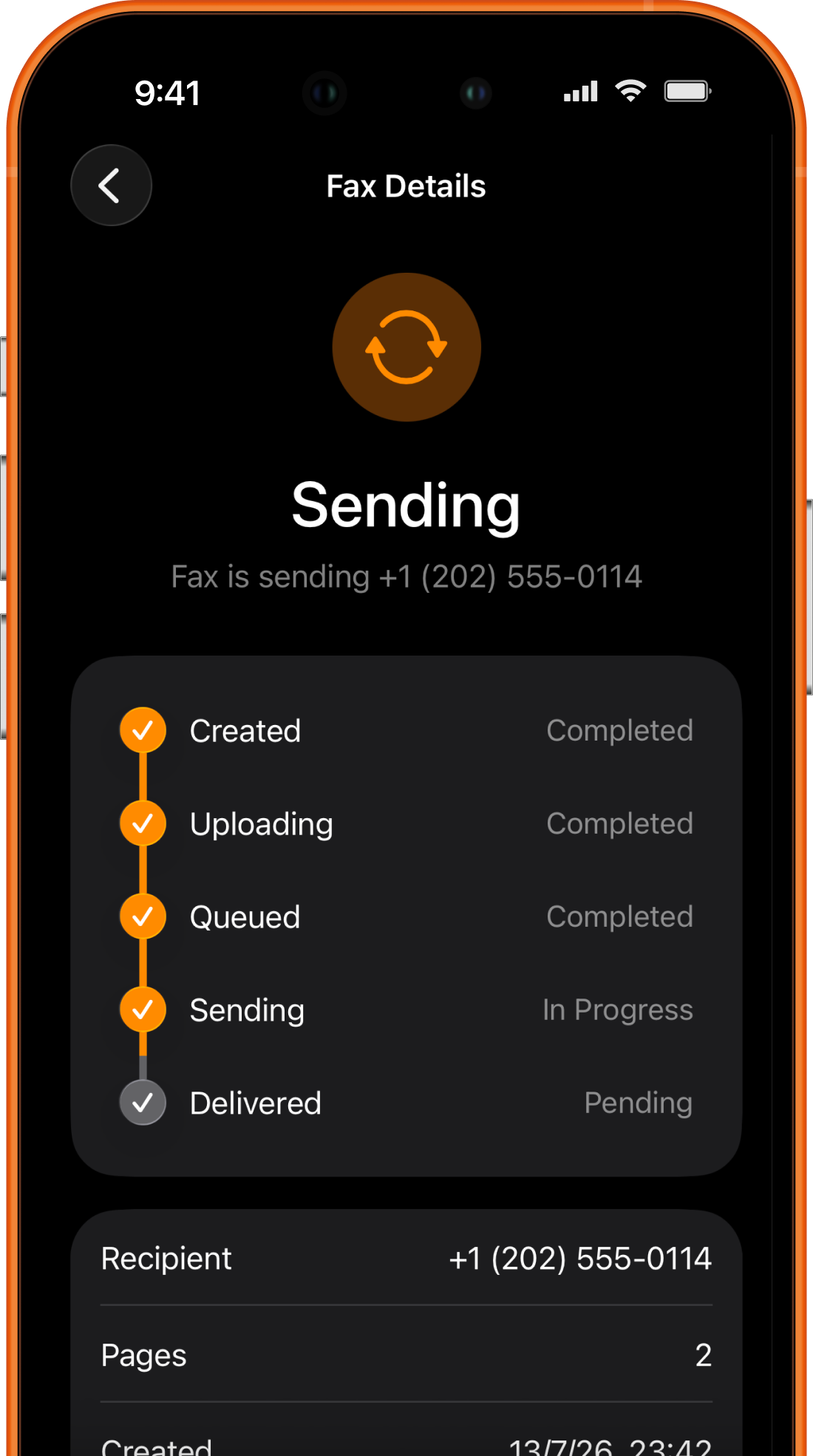
When the status is Not delivered, open the details. Fax Prime can display a reason and, when available, an additional service message. Record the non-sensitive wording before troubleshooting because the next steps differ by category.
Use this fast fax troubleshooting path
Follow the first matching branch:
- Still Uploading, Queued, or Sending? Wait for the final status. Keep a stable internet connection during preparation and do not create a duplicate.
- Recipient line busy? Wait a few minutes, then make one controlled retry.
- No fax signal or Number unavailable? Verify that the complete destination belongs to a working fax service, including country and area codes.
- Call dropped? Retry once. If it happens again, ask the recipient to check the fax line or service.
- File too large? Remove unnecessary pages, reduce the file without destroying readability, or split it into clearly labeled parts accepted by the recipient.
- Subscription or account reason? Correct the account issue or contact Fax Prime support; repeatedly sending the same document will not resolve it.
- Generic Delivery failed? Recheck the number and document, retry once, then contact support with the time, destination, and exact message if it fails again.
This sequence reduces duplicate transmissions and focuses each retry on a changed condition.
Fax Prime failure reasons and next steps
The table below reflects the current user-facing Fax Prime reasons. A carrier or receiving device may use different technical wording, so treat the displayed reason as the starting point for the next safe action.
| Fax Prime reason | What it means in the app | Recommended next step |
|---|---|---|
| Recipient line busy | The receiving line was busy during the attempt | Wait a few minutes and resend once |
| No fax signal | The destination did not provide a valid fax signal | Confirm it is a fax number and ask the recipient to check the machine or service |
| Call dropped | The connection ended before delivery was confirmed | Retry once; after another failure, verify the receiving line with the recipient |
| Number unavailable | The destination appears unavailable or unassigned | Check every digit, including the country code, before trying again |
| Destination not allowed | The destination is not currently available for delivery | Use an allowed destination or contact support when the number should be supported |
| File too large | The delivery service could not process the attached document at its current size | Reduce the file or split it into smaller, labeled faxes |
| Subscription required or Subscription expired | Sending access is not active | Activate or renew the applicable access before resending |
| Account unavailable or Account blocked | The account cannot send at this time | Contact support instead of repeatedly retrying |
| Delivery failed | The service reported a failure without a more specific user-facing category | Retry once after basic checks; contact support if the same result returns |
Do not infer a more specific diagnosis than the app provides. For example, No fax signal can tell you that the destination did not complete the expected fax handshake, but it cannot tell you which component at the recipient’s office caused the problem.
Check the fax number before changing the document
An incorrect destination cannot be repaired by rescanning or compressing the pages. Compare the fax number against an authoritative source supplied by the recipient:
- Select the intended country rather than manually assuming a prefix.
- Compare the country code, area code, and remaining digits one by one.
- Confirm that the number is specifically a fax line, not a voice or general office number.
- Check that you selected the correct department when an organization publishes several fax numbers.
- Do not rely on an old form or an unofficial search result for sensitive paperwork.
If the app reports Number unavailable, No fax signal, or the generic Delivery failed result, call the organization through a verified voice number and ask it to confirm the fax destination. Do not read private document contents or account identifiers to an unverified contact.
When sending internationally, use the country selection and complete fax number expected by the app. Do not add local dialing prefixes simply because they appear on instructions written for a physical office phone system.
What to do when the recipient line is busy
A busy result is often temporary. The destination may be handling another transmission, or its available receiving capacity may already be in use.
Wait a few minutes and resend once. Avoid making several immediate attempts: they can produce duplicate deliveries if an earlier status changes late or if the receiving system processes attempts in a different order.
If the line remains busy across separated attempts, contact the recipient. Ask whether the line is operating and whether there is a better time or alternate approved number. For a deadline-sensitive fax, follow the recipient’s escalation instructions rather than assuming repeated attempts protect the deadline.
How to respond to No fax signal or Call dropped
No fax signal means the destination did not provide a valid fax signal for the service to complete the transmission. The number may reach a voice line, voicemail, phone menu, offline machine, or fax service that is not answering correctly. Verify the number and ask the recipient to check its receiving setup.
Call dropped means the connection ended before the recipient’s fax system confirmed delivery. A new attempt may succeed if the interruption was temporary. Retry once after verifying the number. If it fails again, ask the recipient to check the line and share the attempt time so its support team can investigate.
Do not treat either reason as evidence that the document itself is corrupt. Begin with the destination and connection. Change the file only when the app identifies a document problem or when you can reproduce an import or rendering issue before sending.
Fix document and upload problems
A fax can fail before or during delivery because the service cannot process the document as submitted. Start with the original file and preserve readability.
File too large. Remove pages the recipient does not require. Use the original PDF instead of photographs when possible. Compress only enough to make the document processable; verify small print, signatures, stamps, barcodes, and checkboxes afterward. Fax Prime does not publish a universal number in this guide because limits can change.
Too many pages for one practical transmission. Split the document only if the recipient accepts multiple faxes. Add a cover page to each part with labels such as “Part 1 of 2” and include the page range. Use the free fax cover sheet generator to create a separate PDF for each part. Put the part label and document-page range in the subject or message, and set the page count for that transmission, including its own cover.
Damaged or password-protected PDF. Open the file in the Files app and review every page. If you are authorized to do so, create an unlocked or flattened copy using trusted software. Do not upload a sensitive document to an unknown unlocking website. The PDF faxing guide covers import, page order, and readable output.
Upload appears stuck. Keep the app open, check the iPhone’s internet connection, and allow the current upload to finish or report an error before starting over. Switching repeatedly between Wi-Fi and cellular data during preparation can make it harder to tell which attempt is active.
Split a large fax without losing track of pages
If the recipient accepts separate transmissions, decide the page ranges before creating the parts. Keep the original document intact, and give every part the same non-sensitive reference plus its own part number. The cover’s Total pages is the number in that individual fax, including its own cover; the document-page range identifies pages from the original file.
For example, suppose a 12-page document is divided into two equal parts:
| Transmission | Original document pages | Cover subject | Total pages including this cover |
|---|---|---|---|
| First fax | 1–6 | Reference 4821 — Part 1 of 2 | 7 |
| Second fax | 7–12 | Reference 4821 — Part 2 of 2 | 7 |
This is a counting example, not a Fax Prime page limit or a recommended maximum. There are 12 document pages and two covers across the pair. Enter 7, not 12 or 14, on each cover in this example. In the message, identify the original range, such as “Document pages 7–12 of 12.” The cover sheet generator creates the cover PDF; prepare the document parts separately and check each assembled preview before sending.
Wait for each part’s final result and keep its confirmation report. Delivery of Part 1 does not confirm Part 2. If one part fails, use its exact failure reason and agree with the recipient which part needs replacing, so an already delivered part is not resent unnecessarily.
Resolve subscription, account, and destination restrictions
Subscription required and Subscription expired are not line-quality problems. Confirm the current sending access in the app, complete the appropriate activation or renewal if you choose, and then resend. Review current purchase terms before authorizing a payment.
Account unavailable, Account blocked, and repeated Destination not allowed results usually need support or a supported destination. Do not try to bypass a restriction with alternate accounts, repeated attempts, or reformatted versions of the same number.
Contact Fax Prime through Settings → Contact Support or email contact@noteralabs.com. Include only the information needed to investigate:
- the approximate date and time of the attempt;
- the destination number or a safely redacted version if requested;
- the final status and exact reason shown;
- whether a retry produced the same result;
- the app version and iOS version;
- no document content unless support explicitly requests it through an approved channel.
Never email private pages merely because a transmission failed. Start with metadata and follow the support team’s secure instructions.
Make one controlled retry
Before resending, identify what changed. A useful retry follows this checklist:
- Reopen the failed fax details and preserve the exact reason.
- Verify the current recipient number through an authoritative source.
- Correct the specific cause: wait for a busy line, repair the file, or resolve account access.
- Review every page and the cover sheet again.
- Ask the recipient how duplicate or replacement faxes should be labeled when the first result is uncertain.
- Resend once and wait for the final result.
- If it fails for the same reason, stop repeating the attempt and contact the appropriate recipient or Fax Prime support.
Fax Prime provides a Resend action from fax details. It prepares a new draft from the prior fax so that you can review the recipient and document before submitting another transmission. Treat that review as a safety step, not a button to press automatically.
After a successful retry, open the fax confirmation page and compare its destination, times, page count, and previews with the replacement you intended to send.
Prevent duplicate or misdirected retries
A duplicate can be more confusing than a short delay. If the first attempt’s final state is uncertain, wait for it to resolve or contact the recipient before sending another copy. When a replacement is necessary, label it clearly with a safe reference and the original attempt date.
If you discover that the first fax used the wrong number, do not simply correct the number and move on. Treat the event according to the sensitivity of the document and your organization’s privacy or incident process. A successful result to an unintended number is not successful delivery to the intended recipient.
For future faxes, save an authoritative destination only after confirming it. Review the complete workflow in how to fax from an iPhone, including document preparation, destination checks, and final delivery status.
Frequently asked questions
Should I resend a failed fax immediately?
Only when the reason supports that action. Wait before retrying a busy line. Correct an invalid number or file problem first. Resolve an account restriction or contact support rather than repeating an attempt that cannot succeed unchanged.
Why does my fax say Sending for several minutes?
Sending is an in-progress state, not a failure. The recipient line and document length can affect the attempt. Wait for Delivered or Not delivered before deciding to resend, unless the app presents a specific action or an urgent recipient procedure says otherwise.
What does No fax signal mean?
The destination did not provide the fax signal needed to complete transmission. Confirm that the number is a current fax line and ask the recipient to check the receiving machine or service. Do not assume the document is the cause without a document-specific error.
Can a fax fail because the PDF is too large?
Yes. Fax Prime can report File too large. Remove unnecessary pages, use a reasonable-quality PDF, or split the document into clearly labeled parts accepted by the recipient. Do not compress until signatures or small text become unreadable.
What information should I send to support?
Start with the attempt time, destination, exact final reason, app version, iOS version, and whether one controlled retry repeated the problem. Do not send confidential document pages through ordinary email unless support directs you to an approved secure process.
Product behavior reviewed September 4, 2026 against the current Fax Prime status, failure-reason, resend, and support workflows. Labels and recommendations can change with app updates.