Quick answer
To fax a PDF from an iPhone, open a new fax in Fax Prime, import the document from the Files app or another supported source, review its page order, verify the fax number, send, and retain the final status.
If a document is already a PDF on your iPhone, you usually do not need to print and scan it. Importing the original file preserves sharper text, avoids camera shadows, and removes an unnecessary step. Fax Prime can assemble the PDF with a recipient and cover page, then transmit it to a fax number.
The safest workflow is to inspect the PDF in the Files app first, import the correct version, and review the rendered pages again before sending.
Find the correct PDF in the Files app
Open the Files app and locate the document. It may be stored under On My iPhone, iCloud Drive, Downloads, or a connected provider. Tap the file and make sure it opens completely.
Check the filename, date, and contents. Many fax mistakes happen because several nearly identical versions exist: a blank form, a filled form, a signed version, and a later correction. Rename the final file clearly if that helps you distinguish it, but do not put sensitive information into a filename that may be visible in search results, backups, or shared folders.
Scroll from the first page to the last. Confirm that the PDF is not empty, damaged, or missing attachments. If the document was downloaded from email or a website, wait until the download finishes before importing it.
Check saved form fields and signatures
If you filled in a form or added a signature, make sure you attach the completed PDF rather than the blank original. Apple’s instructions for filling forms and adding signatures on iPhone explain the supported controls. Their names and location can vary with your iOS version and the app you use.
Before importing the file:
- Finish editing and save or share the completed document to Files. Give it a name that distinguishes it from the blank copy.
- Close the document, then reopen that saved copy from Files.
- Check typed answers, selected checkboxes, dates, and every visible signature. Look for cut-off text in small fields and entries placed on the wrong line.
- Import that exact copy, then compare the fax preview with the reopened PDF. If an entry disappears, return to the editor and export a new copy with the visible content preserved before sending.
For a cover made with our tool, the completed and blank PDF options behave differently: the generator places your entries directly on the page, while the blank download has fields to fill in a compatible viewer. In either case, inspect the actual saved file and the assembled fax preview, not just the editor screen.
Import the PDF into Fax Prime
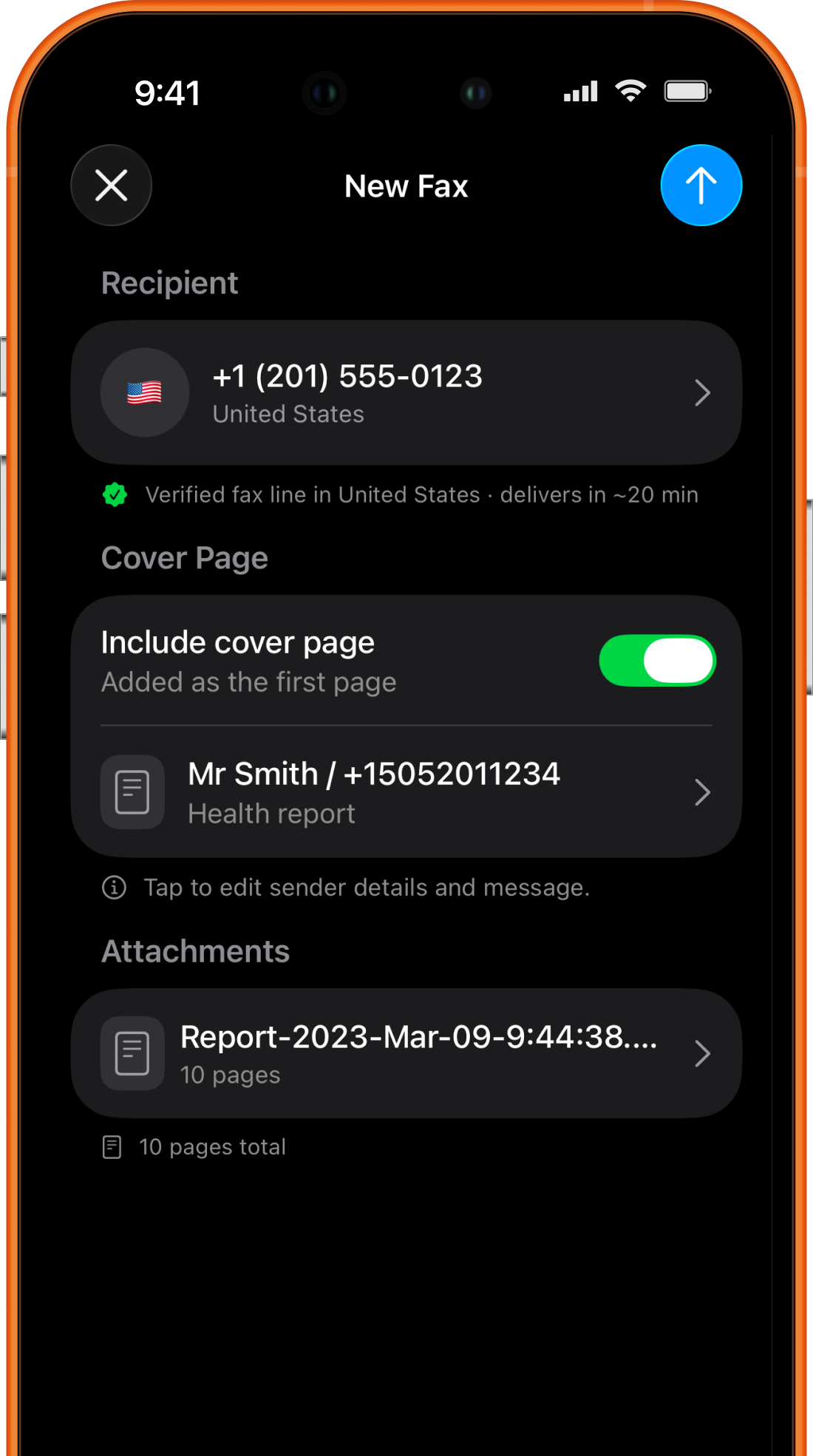
Open Fax Prime and start a new fax. Choose the option to add a document, then select the PDF from Files or another source currently supported in the app. If the file is stored in Dropbox, iCloud Drive, or another provider, it must be available to the iPhone and visible through the selected file workflow.
You can also save an email attachment to Files first: open the attachment, use the system share or save control, choose Save to Files, and select a location you can recognize. Then return to Fax Prime and import that saved PDF. Available actions can differ by the email app and iOS version.
Check page order and orientation
A PDF can open correctly in Files but still need attention after import. Review the fax preview page by page. Confirm that the page order matches the intended reading sequence and that portrait and landscape pages are oriented correctly.
Look for these common problems:
- A cover sheet appears after the main document.
- A signature page is separated from the agreement it belongs to.
- A scanner inserted a blank page after every sheet.
- A landscape table is rotated or reduced until the text is unreadable.
- An appendix or identification page is missing.
- Two PDFs were attached in the wrong order.
If you combine several files, decide the sequence before sending. Put the cover sheet first, the primary form or letter next, and supporting pages after it. Add a page label in the cover message when the recipient expects several separate items.
Do not rely only on thumbnail images. Open a full-size preview and zoom in on small text, signatures, account references, and barcodes.
Verify the recipient and add context
Enter the recipient’s fax number, including the right country and area codes. Compare it with a verified source one digit at a time. If you are sending to a large organization, confirm the correct department; one company can operate several fax numbers for different workflows.
Add a cover page when it will help the recipient route the file. Include the sender, intended recipient, date, page count, and a concise subject. Do not copy the entire private content into the cover message. Use the recipient’s own form or reference instructions when supplied.
Use our free fax cover sheet generator to fill a General, Business, or Confidential template and download its completed PDF. Import that file before the main document, then check that the total page count includes the cover. Creating the cover is free and does not require an account; fax transmission is a separate step.
Send the PDF and wait for the final result
Perform one final review, then send. The PDF first travels through the internet fax service and then to the destination fax line, so the process can take longer than uploading an ordinary message. The recipient’s line may be busy or unable to answer immediately.
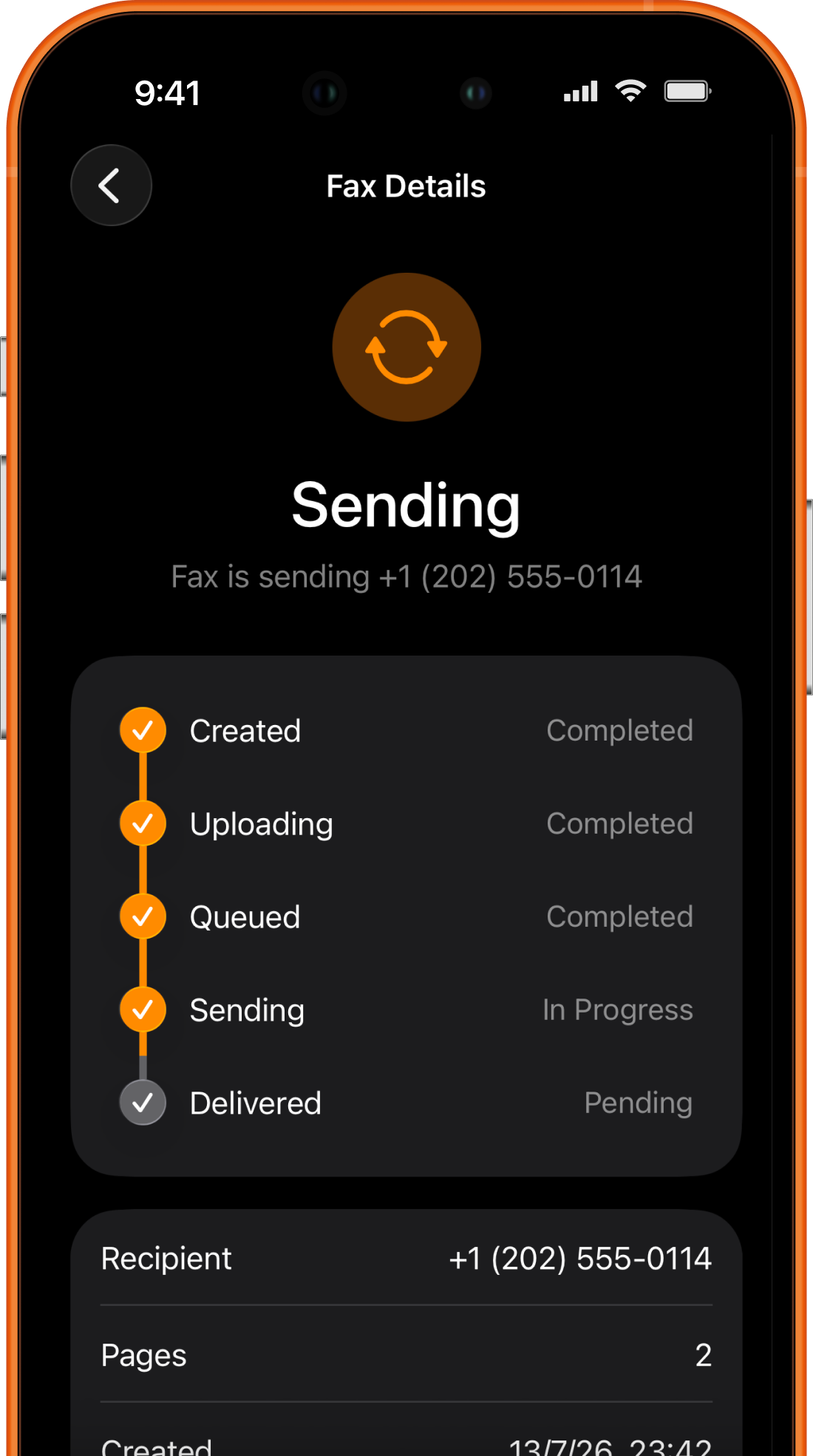
Watch the status until it becomes final. If the app reports delivery, retain that record for important paperwork and review what the fax confirmation page shows. If it reports a failure, use the failed-fax troubleshooting checklist rather than repeatedly sending the same file without understanding the cause.
Remember that delivery to a fax endpoint does not necessarily prove that a particular employee opened, reviewed, or accepted the document. For a deadline-sensitive submission, follow the recipient’s confirmation procedure.
What to do with a password-protected PDF
A password-protected PDF may open for you but fail when another app tries to process it. Encryption can prevent a fax service from rendering its pages. If you are authorized to use the document, open it with the correct password and create an unlocked copy using an approved method, or request an unprotected transmission copy from the issuer.
Do not use unknown “unlock PDF” websites for confidential records. Uploading the file to a third party may expose its contents, and removing protection without permission may violate an agreement or policy.
After creating an authorized unlocked copy, open it in Files and confirm that every page remains readable. Give the copy a clear temporary name, import it, and delete extra versions according to your retention needs after the fax is complete.
Keep PDF pages readable over fax
Fax transmission is not designed to preserve every visual detail of a modern color PDF. Fine gray text, pale signatures, complex backgrounds, and very small type can degrade. Improve the source before sending:
- Prefer dark text on a white background.
- Use the original exported PDF instead of a screenshot.
- Avoid fitting several document pages onto one PDF page.
- Make handwritten signatures dark enough to reproduce.
- Check that stamps and checkboxes remain visible in grayscale.
- Remove decorative backgrounds that compete with important text.
If an office provides a form, use its intended size and layout. Do not crop reference marks, page identifiers, or barcodes. When a critical diagram or photograph depends on color, ask whether fax is an acceptable delivery method.
Troubleshooting PDF import and delivery
The PDF is not selectable. Confirm that it has finished downloading and opens in Files. Move or save a copy to a local Files location if the connected provider is temporarily unavailable.
The app imports fewer pages than expected. Reopen the source PDF and confirm its page count. If the source is correct, create a fresh authorized copy or split the PDF into smaller logical files, then review the assembled order in Fax Prime.
Pages look blank or use broken characters. The PDF may contain unusual layers, fonts, or form fields. Export or print it to a new PDF using trusted software so that the visible result is flattened into ordinary pages. Review signatures and filled fields after doing so.
The fax fails after upload. The problem may be the destination line rather than the PDF. Recheck the fax number and final error state. A busy recipient, invalid number, or unsupported destination should not be “fixed” by lowering document quality.
The file is very large. Remove unneeded pages and use a reasonable-quality PDF. Avoid aggressive compression that makes text unreadable. If the recipient accepts a multi-part fax, follow the worked example for labeling and counting separate fax parts. Keep the original document-page ranges distinct from each transmission’s total, which includes its own cover, and check a final delivery result for every part.
Frequently asked questions
Can I fax a PDF directly from an email on iPhone?
The most reliable method is to save the attachment to the Files app, inspect it, and import it into Fax Prime. A direct share action may be available depending on the email app and current fax app version, but saving first makes the selected file and version easier to verify.
Will links, forms, and video inside a PDF still work?
No. A fax sends rendered pages, not an interactive PDF experience. Links will appear as text, form controls will be flattened visually, and embedded media will not play. Make sure all required information is visible on the pages themselves.
Can I combine a scan with an existing PDF?
Yes, when the app lets you add multiple document sources. Assemble all pages, place them in order, and review the transition between the PDF and scanned pages. The scan, sign, and fax guide explains how to keep those added pages readable.
Is faxing a PDF more secure than emailing it?
Security depends on the full workflow: accounts, devices, providers, recipient access, storage, and later sharing. Do not assume that the word “fax” or “email” alone determines whether a process meets your privacy or compliance requirements.